Launching a new WordPress website is an exciting milestone for any business owner. You spent weeks choosing fonts, tweaking page layouts, and polishing your brand copy. But after hitting "Publish," a common question arises: Why isn't anyone visiting the website?
WordPress powers over 40% of the web, largely because it is naturally built with clean code and search-friendly architecture. However, simply installing WordPress is not enough to rank on page one of Google. Out-of-the-box settings leave crucial technical gaps that quietly block search engines from understanding your business.
If you are overwhelmed by technical jargon, this guide walks through the essential WordPress SEO tips for beginners to help you configure your dashboard, optimize your content, and start driving organic traffic.
What Is WordPress SEO and Why Does It Matter?
WordPress SEO is the process of setting up, configuring, and optimizing your WordPress website so search engines can easily crawl, index, and rank your content.
When search engines like Google or AI discovery tools review a web page, they look for structural signals: fast loading speeds, clean URL paths, clear heading hierarchies, and descriptive metadata.
Getting these fundamentals right early saves you hundreds of hours of corrective technical work down the road.
Phase 1: Fix Essential WordPress Dashboard Settings
Before writing articles or installing complex software, configure your core dashboard settings. These foundational steps ensure search crawlers can read your site properly.
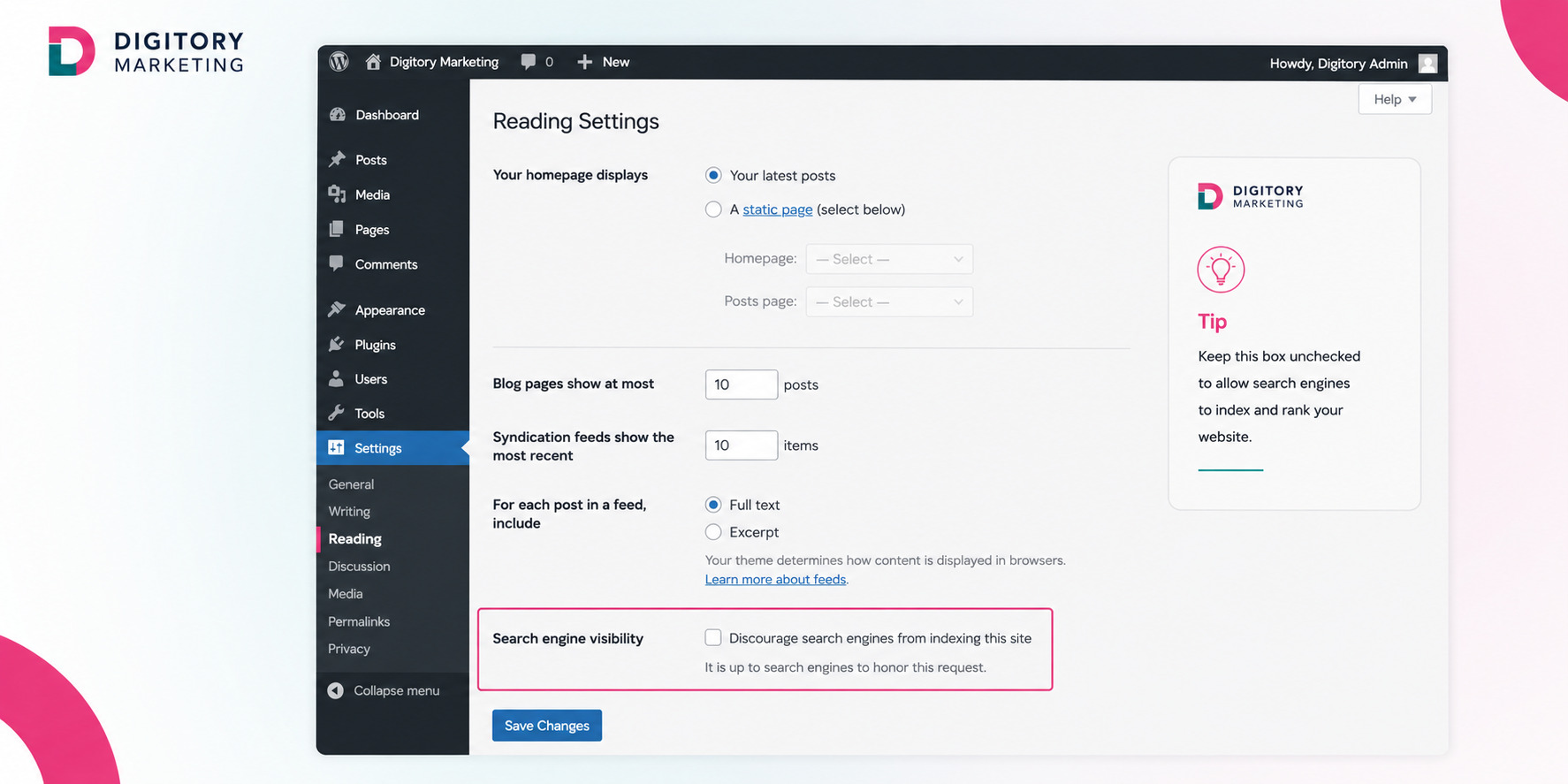
1. Uncheck the "Search Engine Visibility" Box
This single setting causes immense frustration for new site owners. During web development, designers often check a box that tells search engines to ignore the site. If left checked after launch, your site will never rank.
- Where to find it: Go to Settings > Reading in your admin dashboard.
- Action: Scroll down to Search Engine Visibility and ensure the box labeled "Discourage search engines from indexing this site" is completely unchecked. Save your changes.
2. Switch to SEO-Friendly Permalinks
By default, early WordPress installations sometimes format page web addresses like [yourdomain.com/?p=123](https://yourdomain.com/?p=123). These plain URLs give readers and search engines zero context about your page content.
- Where to find it: Go to Settings > Permalinks.
- Action: Select the "Post name" option. This changes your web addresses into clean, descriptive paths like [yourdomain.com/wordpress-seo-tips-for-beginners/](https://yourdomain.com/wordpress-seo-tips-for-beginners/).
[ Default Setting ] ──► yourwebsite.com/?p=123 (Not readable)
[ Optimized Setting ] ──► yourwebsite.com/post-title/ (Search-friendly)
Phase 2: Choose Your Technical Foundation
Your theme and plugins form the structural backbone of your WordPress site.
1. Pick a Light, Speed-Optimized Theme
Heavy, slow themes bloated with unneeded animations drag down page loading speeds. Search engines penalize slow websites because they create poor user experiences. Look for lightweight themes (such as Astra, GeneratePress, or Kadence) that prioritize performance over unnecessary decorative effects.
2. Install ONE Quality SEO Plugin
You do not need multiple plugins to handle search optimization. Installing duplicate plugins slows down your dashboard and creates software conflicts.
Pick one reliable option:
- Rank Math: Highly popular for its intuitive setup wizard and built-in schema tools.
- Yoast SEO: The long-standing standard with straight-forward green-light content checklist indicators.
- All in One SEO (AIOSEO): A solid tool offering strong local search configurations.
An SEO plugin handles technical tasks like generating XML sitemaps (which act as a site blueprint for Google) and allowing you to set custom social previews and search meta tags.
Phase 3: Master On-Page Optimization Basics
Once your dashboard configuration is complete, shift your focus to optimizing individual posts and pages. Implementing practical WordPress SEO tips for beginners on every page ensures your content gets noticed.
1. Structure Headings Correctly (H1, H2, H3)
Think of your page structure like a book outline.
- H1 Tag: Reserved strictly for your main post title. Every post should have only one H1.
- H2 Tags: Used for main sub-sections.
- H3 Tags: Used for sub-topics nested under an H2 section.
Never skip heading levels (e.g., jumping directly from an H1 to an H3) because it breaks the logical structure for screen readers and search crawlers.
2. Optimize Images Before Uploading
Large photo files are the leading cause of slow WordPress sites.
- Compress Files: Run images through free tools like TinyPNG or squoosh.app before uploading to keep file sizes under 200 KB.
- Use Next-Gen Formats: Convert images to WebP formats for faster loading times.
- Write Descriptive Alt Text: Fill out the Alt Text field in your WordPress Media Library for every uploaded image. Describe what is happening in the picture using descriptive, natural language.
3. Build Internal Links Between Posts
When you publish a new article, link back to 2 or 3 existing pages or posts on your site. Use descriptive anchor text rather than generic phrases like "click here".
New Article ──► Internal Link with Anchor Text ──► Existing Service Page
Internal links help search crawlers navigate your website while keeping human visitors engaged on your site longer.
Phase 4: Align Content with Your Business Strategy
Creating content without a clear direction wastes time and effort. Every article should fit into a larger plan for business growth.
When drafting new posts, combine basic technical steps with proven content marketing tips for small businesses to make sure your writing attracts qualified leads.
If you manage a business offering localized services, you can also apply specialized research frameworks like learning how to do keyword research for multiple locations to target customers in specific geographic regions.
If running technical audits and writing weekly posts pulls you away from managing daily operations, partnering with an agency offering specialized SEO content writing services ensures your blog grows steadily without burning out your internal team.
Common WordPress Mistakes to Avoid
Even with the best tools, beginners often fall into preventable technical traps:
- Creating Too Many Tags and Categories: Creating a new tag for every blog post creates thin, duplicate archive pages that dilute search authority. Stick to 4-7 broad categories.
- Ignoring Mobile Formatting: Over half of all web traffic comes from mobile devices. Test your posts on a mobile phone to ensure text size is readable and buttons are easy to tap.
- Neglecting Google Search Console Setup: Failing to connect your site to Google Search Console leaves you blind to search performance metrics, index errors, and real user keyword queries.
Frequently Asked Questions
Do I need to pay for premium SEO plugins to rank on Google?
No. Free versions of plugins like Rank Math, Yoast SEO, or AIOSEO provide all the core tools beginners need, including XML sitemaps, meta tags, and basic schema settings. Premium plugins offer useful automated conveniences, but they are not required to achieve high search rankings.
How long does it take for a new WordPress site to rank?
For brand-new domains, search engines take time to discover, index, and evaluate content. You will typically begin seeing initial search impressions within 30 to 60 days, with meaningful organic traffic developing over 3 to 6 months of consistent publishing.
Should I delete default WordPress content like the "Hello World!" post?
Yes. Always delete default sample posts, sample pages, and placeholder comments that come pre-installed with WordPress. Leaving them active creates unnecessary junk pages on your site.
What is the difference between categories and tags in WordPress?
Categories represent the broad table of contents for your site (e.g., "Marketing Tips"), while tags act as index terms for specific sub-topics mentioned in a post (e.g., "WordPress"). Use categories for high-level organization and keep tags minimal.
How can I make my WordPress site load faster?
Use a lightweight theme, host your site on a quality managed WordPress host, compress all images before uploading, install a caching plugin (like WP Rocket or LiteSpeed Cache), and avoid installing dozens of unnecessary plugins.
Key Takeaways
- Uncheck the "Search Engine Visibility" box in dashboard settings to allow Google to index your website.
- Set permalinks to "Post name" for clean, search-friendly URLs.
- Use a lightweight theme and install a single quality SEO plugin to handle technical sitemaps and metadata.
- Structure your content logically using proper H1, H2, and H3 heading hierarchies.
- Compress images before uploading and add descriptive alt text for better accessibility and page speed.
At Digitory Marketing, we help growing businesses transform quiet websites into active customer acquisition channels. Start your growth journey today! Book your free strategy call here.