Introduction
If you run a WordPress site, you already know that speed and SEO are not separate goals. They work together. A fast site keeps visitors engaged, lowers bounce rates, and gives Google a strong signal that your pages are worth ranking. In this guide, we show you how to optimize a WordPress site for speed and SEO together without sacrificing one for the other.
At Digitory Marketing, we often see clients chase rankings with heavy themes, bloated plugins, or fancy page builders that slow everything down. The result is lower organic traffic, even if the content is good. This step-by-step guide will help you build a WordPress site that is both fast and SEO friendly.
Why Speed and SEO Must Work Together
Google uses page experience as a ranking factor. Core Web Vitals measure loading speed, interactivity, and visual stability. If your site loads slowly, users leave before they see your content. That increases bounce rate and reduces time on page, which can hurt rankings. Speed also affects conversions. A one-second delay can reduce conversions by 7 percent. That means every optimization you make for speed is also an investment in your SEO and revenue.seo optimized content
Step 1: Start with the Right Hosting and PHP Version
Your hosting provider sets the ceiling for your site speed. No amount of optimization can fix a slow server. Choose a host with modern infrastructure, built-in caching, and solid support for WordPress.
Also update your PHP version to 8.2 or later. Newer PHP versions are faster and more secure. Many hosts let you change this in your control panel with one click. This single change can cut server response time in half.
Action: Run a speed test before and after upgrading PHP. Use Google PageSpeed Insights or GTmetrix to track the improvement.
Step 2: Use a Lightweight, SEO-Friendly Theme
Heavy themes with dozens of built-in features slow down your site. Pick a lightweight theme that focuses on performance and clean code. Avoid themes that bundle page builders, sliders, and unnecessary scripts.
Popular fast themes include GeneratePress, Kadence, and Blocksy. These work well with the block editor and give you flexibility without bloat. A fast theme improves Core Web Vitals and makes every other optimization easier.
Step 3: Install a Caching Plugin
Caching creates static versions of your pages, so the server does not have to rebuild them on every visit. This is one of the biggest speed wins for WordPress.
Recommended caching plugins:
- WP Rocket (paid, very easy to set up)
- LiteSpeed Cache (free, great if your host uses LiteSpeed servers)
- W3 Total Cache (free, powerful but more complex)
Enable page caching, browser caching, and if possible, object caching with Redis or Memcached. This reduces server load and improves load times for returning visitors.
Step 4: Optimize Images without Losing Quality
Images are often the largest files on a page. Large images slow downloading and hurt Core Web Vitals. Optimize every image before and after upload.
Best practices:
- Compress images using ShortPixel, Imagify, or EWWW Image Optimizer
- Convert images to WebP or AVIF formats for smaller file sizes
- Set max width limits (for example, 1920px for full-width images)
- Use descriptive filenames and alt text for SEO
Lazy loading ensures images only load when they scroll into view. This improves initial page load and saves bandwidth for mobile users.
Step 5: Minify and Combine CSS and JavaScript
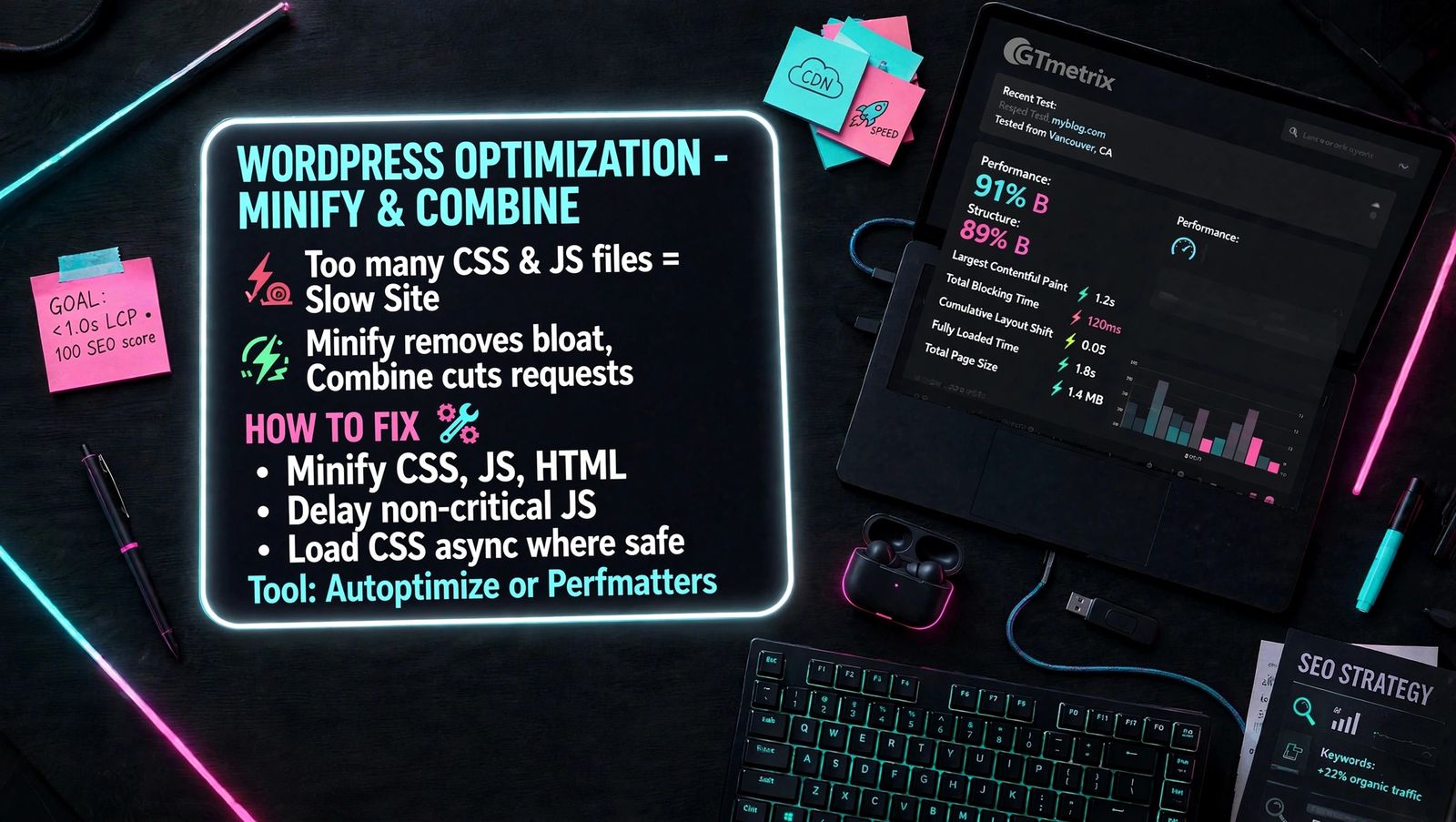
Every plugin and theme adds CSS and JavaScript files. Too many files increase HTTP requests and slow down rendering. Minification removes unnecessary characters from code. Combining files reduces the number of requests.
Use your caching plugin or a tool like Autoptimize or Perfmatters to:
- Minify CSS, JavaScript, and HTML
- Delay non-critical JavaScript
- Load CSS asynchronously were safe
Test after each change. Some scripts must load in a specific order, so check that your site still works correctly.
Step 6: Use a Content Delivery Network (CDN)
A CDN stores copies of your static files on servers around the world. When a visitor loads your site, files are served from the closest server. This reduces latency and improves load times for global audiences.
Many hosts include a CDN. If not, consider Cloudflare, BunnyCDN, or RocketCDN. A CDN also helps with security by filtering bad traffic before it reaches your server.
Step 7: Clean Your Database and Remove Unused Plugins
Over time, your WordPress database collects post revisions, spam comments, and transient data. This bloat slows down queries. Use WP-Optimize or a similar plugin to clean your database on a schedule.
Also remove unused plugins and themes. Each active plugin adds code that can slow down your site. Deactivate and delete anything you do not need.
Tip: Use Query Monitor to identify slow plugins. If a plugin adds more than 200ms to load time, look for a lighter alternative.
Step 8: Set Up SEO Basics the Right Way
Speed without SEO is like a fast car with no map. You need both. Use an SEO plugin like Rank Math, Yoast SEO, or The SEO Framework to manage titles, meta descriptions, sitemaps, and schema markup.
Key SEO setup steps: best free wordpress seo plugins
- Set permalinks to post name (Settings → Permalinks)
- Generate an XML sitemap and submit it to Google Search Console
- Add meta titles and descriptions to every page and post
- Use H1 for page titles, H2/H3 for sections
- Add alt text to all images
- Use internal linking to connect related content
These steps help Google understand and rank your content while keeping your site structure clean and fast.
Step 9: Optimize for Core Web Vitals
Core Web Vitals focus on three metrics:
- Largest Contentful Paint (LCP): how fast the main content loads
- Interaction to Next Paint (INP): how quickly the page responds to input
- Cumulative Layout Shift (CLS): how stable the layout is as it loads
To improve LCP:
- Optimize your largest image or heading
- Use server-side caching and a CDN
- Preload critical resources
To improve INP:
- Reduce JavaScript execution time
- Break up long tasks with code splitting
- Avoid heavy third-party scripts
To improve CLS:
- Set width and height attributes on images and embeds
- Avoid inserting content above existing elements
- Use font-display: swap for custom fonts
|
Metric |
What It Measures |
How to Optimize |
|
LCP |
Largest Contentful Paint — how fast the main content loads |
• Optimize your largest image or heading • Use server-side caching and a CDN • Preload critical resources |
|
INP |
Interaction to Next Paint — how quickly the page responds to input |
• Reduce JavaScript execution time • Break up long tasks with code splitting • Avoid heavy third-party scripts |
|
CLS |
Cumulative Layout Shift — how stable the layout is as it loads |
• Set width and height attributes on images and embeds • Avoid inserting content above existing elements • Use font-display: swap for custom fonts |
Google Search Console shows your Core Web Vitals report. Fix the URLs marked as poor or need improvement.
Step 10: Monitor, Test, and Iterate
Optimization is not a one-time task. Run regular speed tests and SEO audits. Track changes in rankings, traffic, and conversions. Use tools like:
- Google PageSpeed Insights
- GTmetrix
- Google Search Console
- Google Analytics
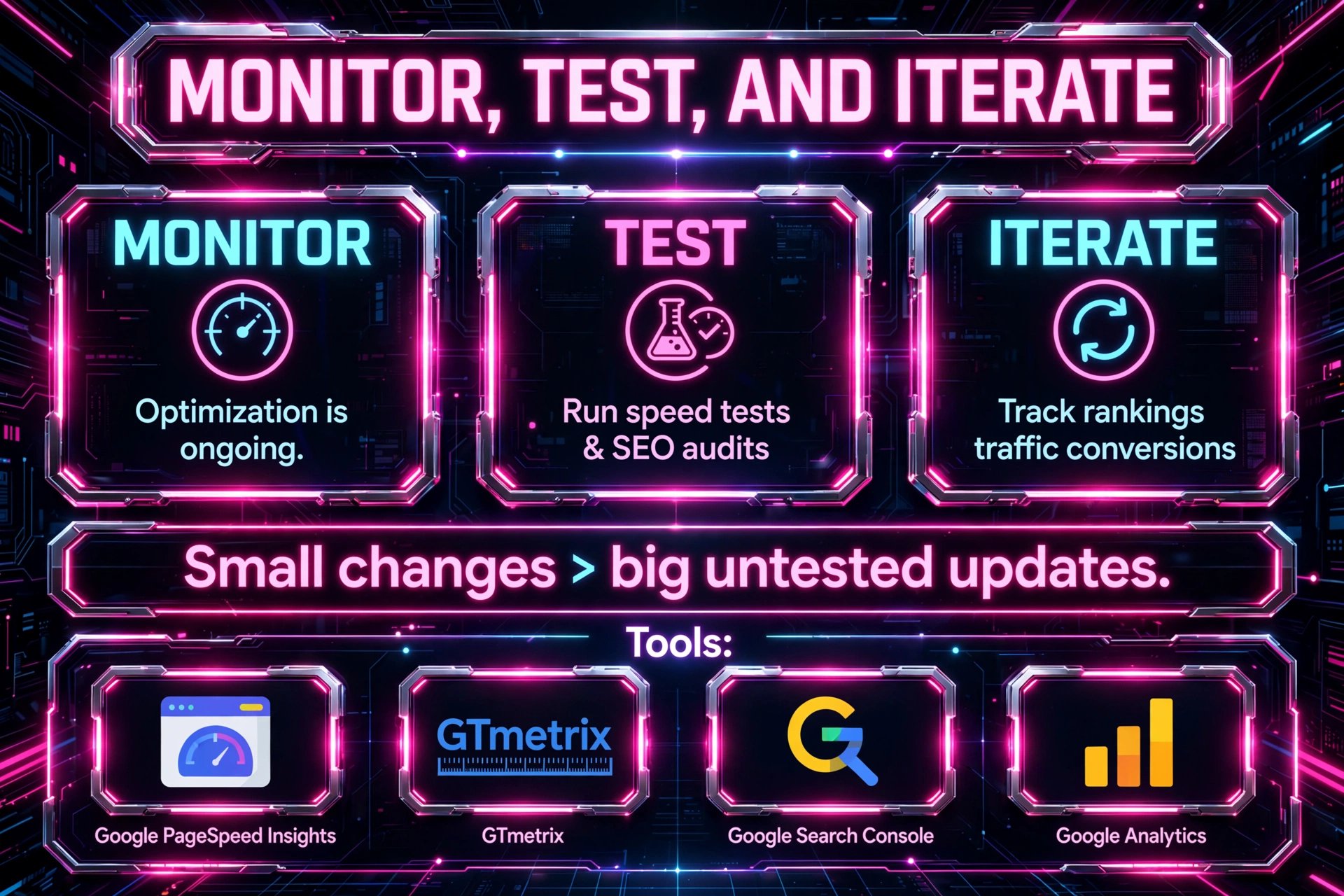
Make small changes, test, and measure. This prevents you from breaking your site with big, untested updates.
Common Mistakes to Avoid
- Installing too many plugins "just in case"
- Using heavy page builders for simple pages
- Uploading full-resolution images directly from your camera
- Skipping caching or CDN setup
- Ignoring mobile performance
- Not updating WordPress, themes, and plugins
Each of these mistakes slows down your site and weakens your SEO.
When to Get Professional Help
If you have tried the steps above and still struggle with speed or rankings, it may be time to get expert help. At Digitory Marketing, we can be of service to you in optimizing your WordPress speed that align with SEO goals.
We audit your site, identify bottlenecks, and implement a tailored plan so you can focus on running your business.
FAQ
1. Can I optimize WordPress for speed without hurting SEO?
Yes. Most speed improvements, such as caching, image optimization, and using a CDN, also help SEO. Avoid changes that remove content or block search engines.
2. Which caching plugin is best for WordPress?
WP Rocket is the easiest for most users. LiteSpeed Cache is excellent if your host uses LiteSpeed servers. W3 Total Cache is powerful but more complex.
3. Do I need a CDN for a small WordPress site?
A CDN is not mandatory for small local sites, but it still improves load times and adds a layer of security. It becomes essential as your audience grows or becomes global.
4. How often should I clean my WordPress database?
Monthly is a good starting point. If you publish frequently or run many plugins, consider weekly cleanups. Use a plugin to automate this safely.
5. Will changing my theme affect my SEO?
It can, if the new theme changes your URL structure, removes content, or slows down your site. Choose a fast, SEO-friendly theme and keep your permalinks and content intact.
6. How do I know if my site is fast enough?
Aim for a Google PageSpeed score of 80+ on mobile and desktop, and good Core Web Vitals in Search Console. More important, ensure your key pages load in under 2.5 seconds for users.
Key Takeaways
- Speed and SEO reinforce each other on WordPress.
- Start with good hosting, a lightweight theme, and updated PHP.
- Use caching, image optimization, and a CDN for major speed gains.
- Clean your database and remove unused plugins regularly.
- Set up SEO basics with an SEO plugin and proper site structure.
Monitor Core Web Vitals and iterate based on data.
Contact us at https://www.digitorymarketing.com for your digital marketing services